
If you do anything admin-related on macOS, you know the drill: a random dialog pops up, you type your password, you continue… and repeat that 20 times a day.
- GUI prompts (System Settings, installers, “needs your password”, …) can use Touch ID and often Apple Watch confirmation.
- Terminal
sudocan be upgraded to use Touch ID as well (so you don’t have two authentication experiences).
Clamshell reality check:
Touch ID for
sudoonly works when a Touch ID sensor is available. With the MacBook lid closed, the built-in Touch ID button isn’t usable — you’ll need an external Touch ID keyboard. Apple Watch can approve many GUI prompts, but it won’t replace the password prompt forsudo.
Prerequisites
For Touch ID
- A Mac with Touch ID or an external keyboard with Touch ID (e.g. Magic Keyboard with Touch ID)
- A local admin account on the Mac
For Apple Watch confirmation (mostly for GUI prompts)
- An Apple Watch that can unlock your Mac
- The Watch and the Mac signed into the same Apple ID (with 2FA enabled)
- Bluetooth + Wi‑Fi enabled on the Mac
- The Watch has a passcode and is unlocked on your wrist
If your MacBook lid is closed (clamshell mode)
- External display + power connected
- External keyboard + mouse/trackpad
- If you want Touch ID for
sudo: an external keyboard with Touch ID
Step 1: Turn on Touch ID / Apple Watch unlock
Open:
System Settings → Touch ID & Password
Then enable what you want:
- Touch ID: add at least one fingerprint
- Apple Watch: enable “Use Apple Watch to unlock your Mac” (wording may vary slightly)
From now on, many system dialogs will already offer Touch ID / Apple Watch instead of asking for your password.
Step 2: Make sudo use Touch ID
By default, Terminal still wants your password for sudo.
To align sudo with the rest of your Mac, enable the built-in PAM module pam_tid.so.
If you’re using your MacBook in clamshell mode: this only works with an external Touch ID keyboard (otherwise sudo will keep asking for your password).
Run this once:
sudo sh -c 'grep -q "pam_tid\\.so" /etc/pam.d/sudo || (cp /etc/pam.d/sudo /etc/pam.d/sudo.bak && sed -i "" "1s/^/auth sufficient pam_tid.so\\n/" /etc/pam.d/sudo)'sudo sh -c 'grep -q "pam_tid\\.so" /etc/pam.d/sudo || (cp /etc/pam.d/sudo /etc/pam.d/sudo.bak && sed -i "" "1s/^/auth sufficient pam_tid.so\\n/" /etc/pam.d/sudo)'Test it:
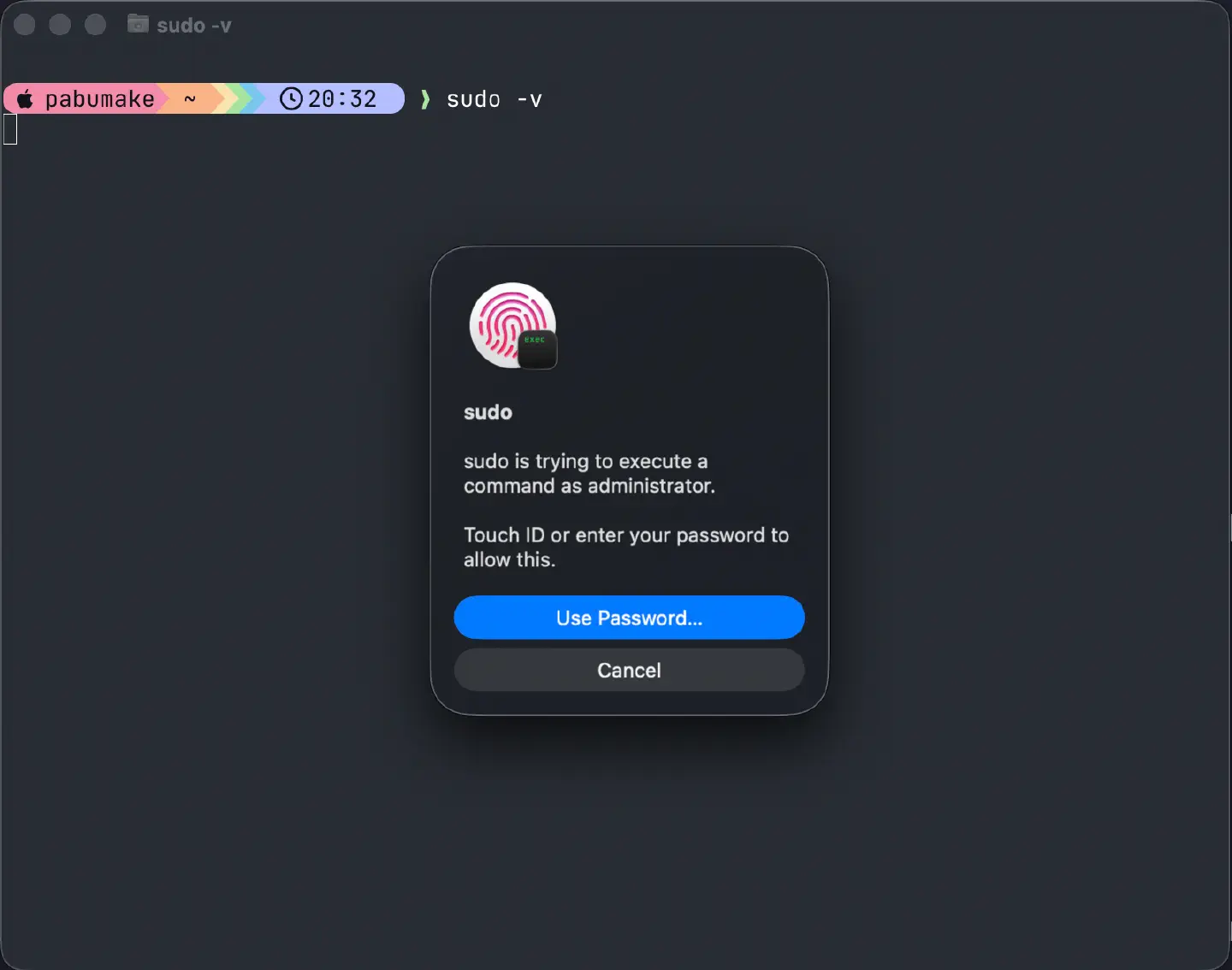
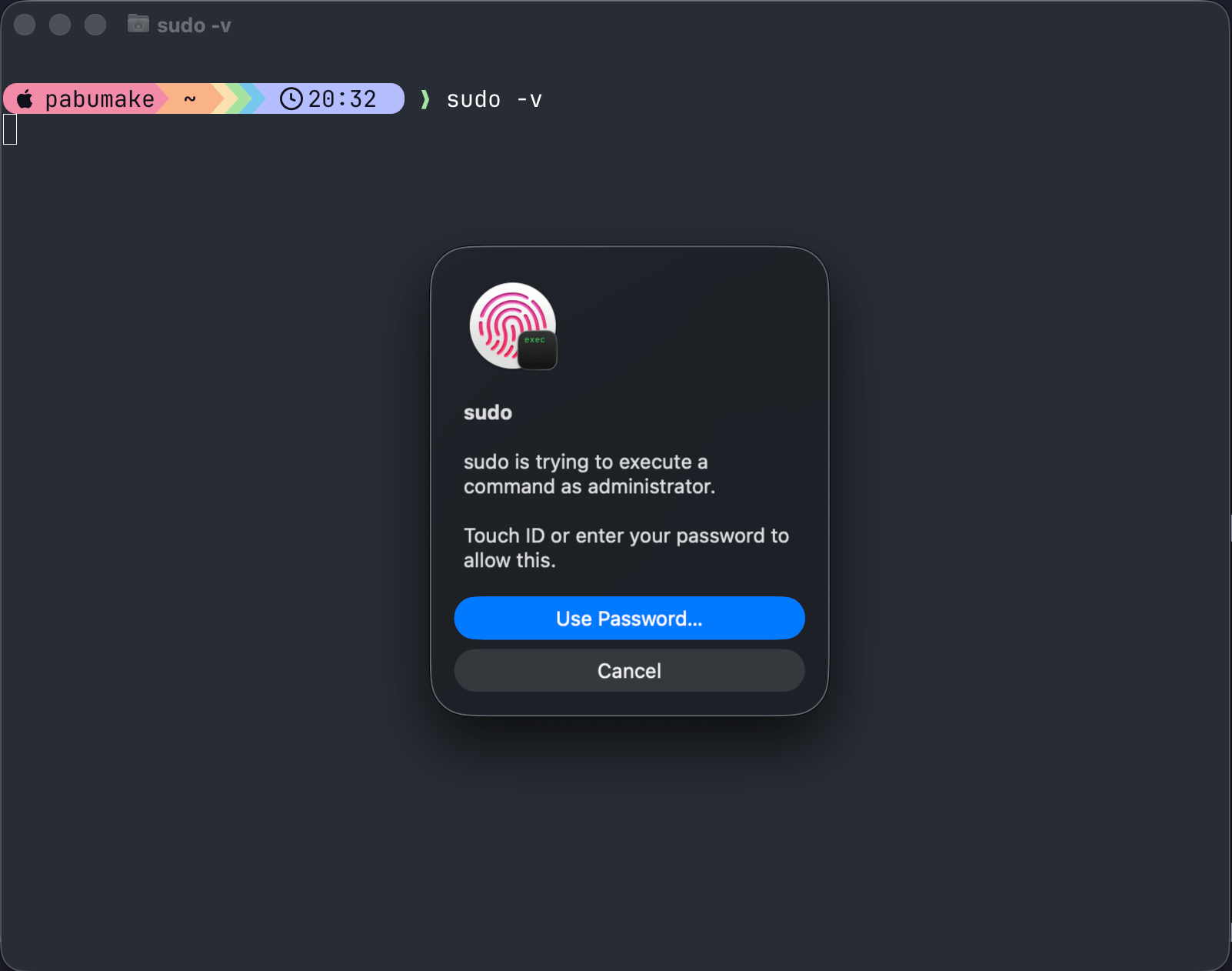
sudo -vsudo -vYou should get a Touch ID prompt instead of a password prompt like this:
Considerations / Notes
Important
- This affects
sudoin local Terminal sessions. Over SSH, you’ll still need a password (Touch ID can’t be forwarded).- In clamshell mode, Touch ID only works if your keyboard has a Touch ID sensor. Otherwise you’ll mostly rely on Apple Watch for GUI prompts.
- Apple Watch confirmation is supported for many macOS dialogs, but it does not replace the password prompt for
sudoout of the box.- Major macOS updates can overwrite
/etc/pam.d/sudo. If Touch ID suddenly stops working forsudo, re-run the one-liner.- Security tradeoff: anyone who can authenticate as you (Touch ID) while you’re logged in can run
sudo. If that’s not acceptable for your threat model, skip this tweak.
Rollback / Undo
If you want the original behavior back just run this command:
sudo mv /etc/pam.d/sudo.bak /etc/pam.d/sudosudo mv /etc/pam.d/sudo.bak /etc/pam.d/sudoUntil then, stay safe, stay alerted
~ pabumake